Installing KEYLOK2 Dongle Drivers
Most EEGer systems use a green security dongle, which require special files called ‘drivers’ to communicate with the computer. These drivers are typically installed with the EEGer software, but can become removed by Windows Updates, quarantined by anti-virus programs, or fail to install in certain conditions.
When you encounter an issue with dongle drivers, the main screen of the software will show a red warning message that reads dongle not found. This message could indicate the dongle is not connected, or is connected to a hub that the computer can’t talk to, but if it persists after changing ports and restarting the software, the issue is likely the drivers.
Installing Drivers Via EEGer
EEGer includes a copy of the dongle drivers with the installation. To manually install the drivers, follow these steps:
Note: Older software versions may not include the latest dongle drivers. If you try the steps below and your issue is not resolved, try the steps in the next section to install the latest driver directly from KEYLOK’s website.
Disconnect the dongle from the computer.
Navigate to Help>Run tech support menu from the top toolbar of EEGer's main display. This should open up a smaller window with several options.
Locate a green button labeled Start dongle installer in the bottom-right of the menu.
When pressed, a prompt will appear asking to make changes to the computer. Click OK or Yes to proceed to the KEYLOK installer.
In the bottom-left of the KEYLOK installer, check the box for Uninstall and then press Begin Uninstall.
A confirmation message will appear - select Yes.
Once finished, click Close.
The Tech Support Menu will appear again - click the green button labeled Start dongle installer again.
When pressed, a prompt will appear asking to make changes to the computer. Click OK or Yes to proceed to the KEYLOK installer.
At the top of the KEYLOK installer, under Dongle Type, check the box for KEYLOK 2 (USB w/Driver). A warning to not connect the dongle may appear, press OK to dismiss it.
Click Begin Install in the bottom-right of the menu.
Complete the installation wizard that appears by pressing Next and Finish when prompted.
Once completed, close the KEYLOK installer to return to the Tech Support Menu - Press Done (Exit) to return to the software's main screen.
Close the software and reconnect the dongle to the computer.
Once the dongle is connected, reopen EEGer and observe if the software reports dongle not found on the main screen of the software. If it does not report this error, the dongle drivers have been successfully installed!
Installing Drivers Via KEYLOK Website
Navigate to the KEYLOK website and locate the latest install.exe file in the downloads section, usually at the top of the page.
Download the installer, which will go to your Downloads folder as a .zip file. You may be prompted to mark the file as safe, or download anyway.
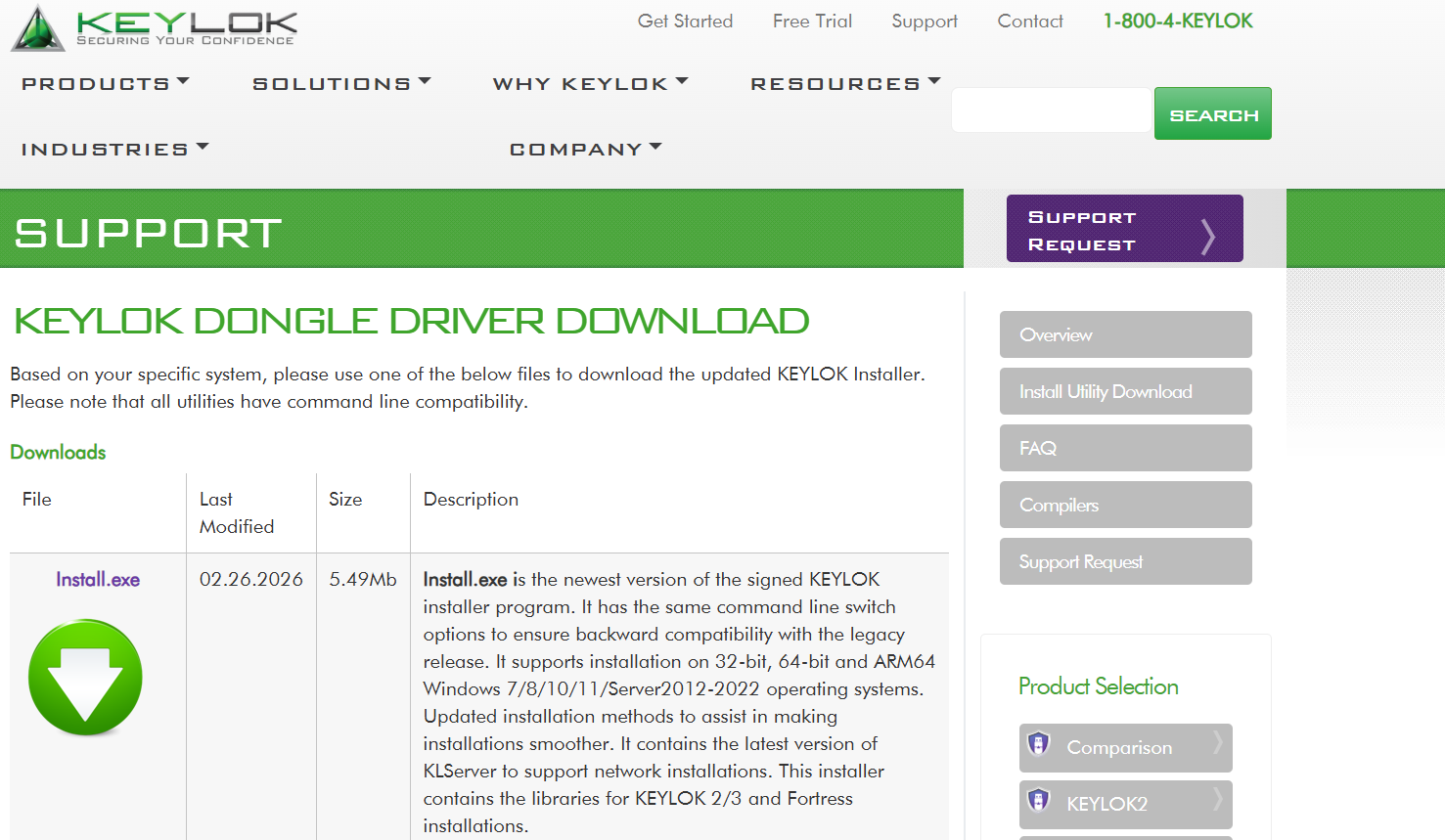
Always check for the latest install, usually located at the top of the downloads section. You can click Install.exe to begin the download.
In the Windows File Explorer (Win+E or folder icon), navigate to your Downloads folder and locate the 'Install-…’ .zip file.
Extract the contents of the .zip folder to its own folder on the computer. You can do this in Windows by clicking on the folder and selecting ‘Extract All’. You may also be able to extract by right-clicking or double-clicking on the folder.
From the extracted folder, run the installer. You may again be prompted to allow the file to run depending on your computer’s security settings.
In the bottom-left of the KEYLOK installer, check the box for Uninstall and then press Begin Install.
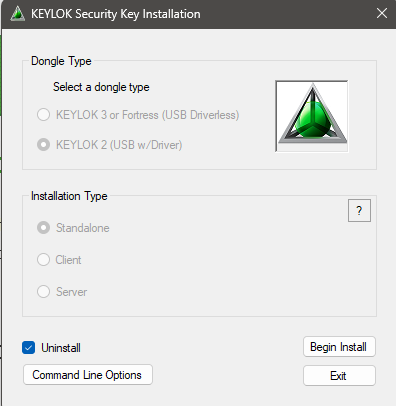
A confirmation message will appear, and you may need to reopen the Installer again.
At the top of the KEYLOK installer, under Dongle Type, check the box for KEYLOK 2 (USB w/Driver). A warning to not connect the dongle may appear, press OK to dismiss it. Make sure that Standalone is checked.
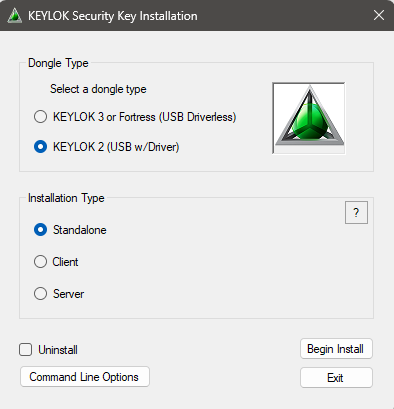
Click Begin Install in the bottom-right of the menu.
Complete the installation wizard that appears by pressing Next and Finish when prompted.
Once complete, reconnect your EEGer dongle and close/reopen the EEGer software.