A recent Windows update can cause necessary EEGer files to be reported as incompatible with Windows. This message is incorrect, but will appear whenever EEGer is opened on a computer after the update is applied. An example message is included below.
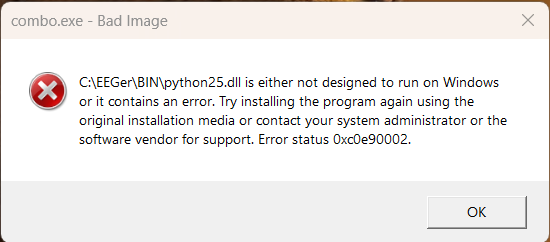
combo.exe - Bad Image
C:\EEGer\BIN\python25.dll is either not designed to run on WIndows or it contains an error. Try installing the program again using the original installation media or contact your system administrator or software vendor for support. Error status 0xc0e90002.
To stop this message from appear, follow these steps:
Search Windows for the system setting Smart App Control. You can search Windows by opening the Start Menu and typing ‘Smart App’ or using the Windows search bar, located by default in the taskbar at the bottom of the screen.
In the Windows Security window that appears, set Enhanced Protection from untrusted apps to Off. You’ll be asked to confirm this change. Once completed, close the Window to apply the change.
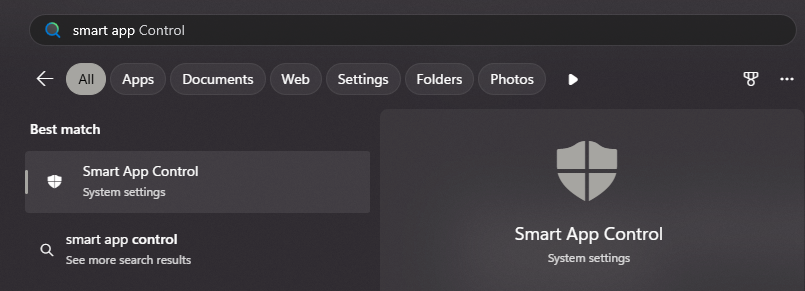
Smart App Control will appear in the Windows Start Menu when you begin typing. You can open the Start Menu by clicking the Windows icon on your taskbar or by tapping the Windows key on your keyboard (four square symbol, bottom-left of your keyboard by Ctrl & Alt).
After you’ve completed the steps above to disable Smart App Control, the warning message will no longer appear when opening the program.
If issues persist, try first restarting the computer, then check out these articles for further troubleshooting.
Dongle Not Found
Adjust Windows Core Isolation Settings
Manually Install Dongle Drivers